


Permission Guard
4.7549.00 Reviews
App Specs
- Version
- 2.8.5
- Updated On
- License
- Free
- Downloads
- 1,000,000+
- Developer
- VY Technology Services
- Categories
- Business
- Platform
- Android
Screenshots
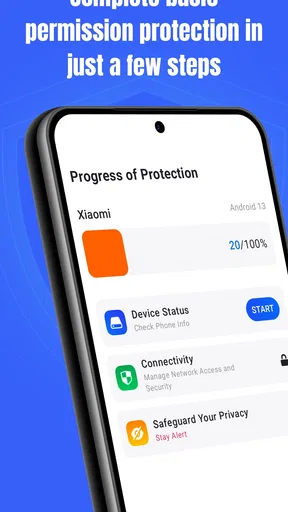
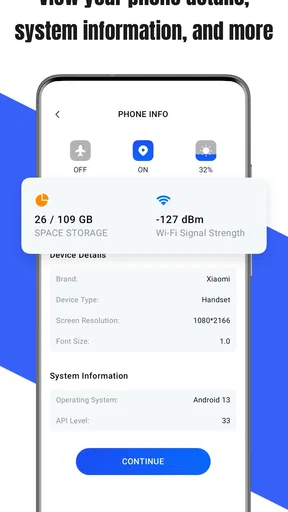
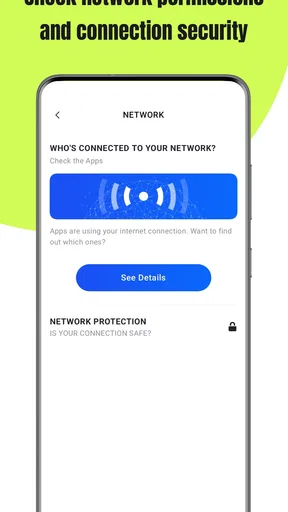
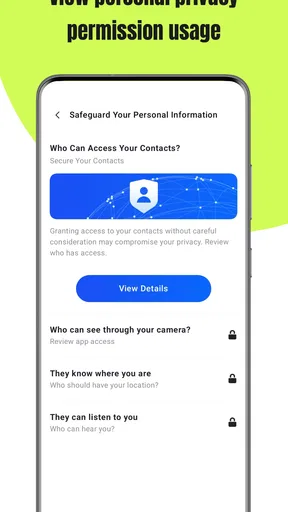
 Analysis by AppCompare
I think a permission manager is most useful when it helps me make deliberate choices, not when it turns every access request into a reason to panic. Permission Guard is aimed at that everyday task: seeing what access apps have and deciding whether it still makes sense. I’d treat it as a practical housekeeping tool, especially if you install apps for one-off jobs and forget to revisit their settings later.
What to expect when checking permissions
Permission checks are less about speed tests than about getting to a clear answer without digging through menus one app at a time. Permission Guard is a business-category security app from EZ Develop, and its purpose is to make permission management more approachable. The experience described by its core tools is focused on inspection and control: review access, identify anything you don’t want an app to have, and make a change where appropriate.
The key benefit is not that every concern disappears with one tap. It is that permission decisions become visible and easier to revisit. I’d start with apps I rarely use, then check whether their access still fits their job. A photo editor may reasonably need access to selected images when I’m editing; a simple utility that has no clear reason to use the camera deserves a closer look. That kind of comparison is more useful than treating every permission as automatically dangerous.
Where heavier use calls for care
A quick check of a few apps should feel different from reviewing a phone full of installed software. The larger the app collection, the more valuable it is to work in small batches: start with social, shopping, travel, or work apps, then return to less familiar tools later. This keeps the review manageable and helps me remember why I changed something.
There is also a practical trade-off: restricting access can affect an app’s normal functions. If a messaging app cannot use the camera, for example, taking a picture inside a conversation may no longer work until access is restored. I’d make one change at a time and test the feature I care about, rather than switching off several permissions and then trying to work out which change caused a problem.
Reliability means checking the result
Permission Guard’s alerts and reports are intended to make permission activity easier to follow, but I wouldn’t use an alert by itself as proof that an app is harmful. A prompt or access notice needs context: what app was active, what task I was doing, and whether that access fits the task. Reports are most helpful as a starting point for a closer look, not as a verdict on an app’s intentions.
For an important app, I’d verify the result in the app itself after changing access. If a feature stops working, restore only the permission it needs and try again. This cautious approach is especially useful for work tools or services I rely on, where uninterrupted access matters as much as tighter privacy. It also gives me a straightforward way to recover from an over-restrictive setting instead of leaving a broken feature unexplained.
Worth Reading Before You Choose

EA SPORTS FC Mobile 26 Is a Bigger Football Game, but It Takes Time

Flipboard Shows What News Apps Must Do Beyond the Feed

Switching to Android Auto Means Rethinking Your Driving Routine

Google Calendar Makes a Crowded Week Easier to Manage

Ludo King Makes the Most of the Minutes Between Plans

Baby Panda World Brings Quick Play to Modern Phones, but Its Game Library Feels Busy
Device fit and sensible expectations
The app is free, rated for Everyone, and has a 4.7 average from around 2,900 ratings, with over 500,000 installs. It was released on March 4, 2025, and version 2.5.0 lists Android 7.0 as the minimum operating system. Those details make it relevant to a broad range of Android users, though the phone’s own software still shapes how permissions are handled and what settings are available.
I would not assume that an extra management app can override every limit or behavior built into Android. Permission Guard is best approached as a clearer way to review and manage access, while the operating system remains central to how those decisions take effect. If you already prefer checking each app through Android’s settings, that direct route may be enough; this app makes more sense if you value a dedicated place to keep the task in view.
Ever found yourself wondering which app is snooping around your phone without your knowledge? Well, say hello to Permission Guard, your new best friend in the world of privacy protection. This app is like having a bouncer for your phone, making sure only the right guests get in.
Why Permission Guard is a Must-Have
Let’s dive into what makes this app such a game-changer. First off, it’s super user-friendly. The interface is clean and straightforward, which is a massive relief when you’re looking to get things done without a tech degree. You can easily navigate through the menus and find out exactly what permissions each app on your phone is using.
Now, here’s where it gets really interesting. Permission Guard doesn’t just tell you what permissions apps are using; it gives you the power to control them. Want to stop that game from accessing your camera? No problem. You can switch off permissions with a simple tap. It’s like having a remote control for your apps, except way cooler.
Features That Stand Out
One of the standout features is the real-time alerts. Imagine getting a heads-up whenever an app tries to access something it shouldn’t. It’s like having a security system for your phone. Plus, the app gives you a detailed report of what’s been going on, so you’re always in the loop.
Another neat feature is the privacy score. It’s a quick way to see how secure your phone is. The app analyzes your permissions and gives you a score, so you know exactly where you stand. It’s like having a personal trainer for privacy, showing you areas for improvement.
Getting the Most Out of It
Setting up Permission Guard is a breeze. Just install it, and you’re good to go. The app guides you through the initial setup, making sure everything is configured just right. It’s almost like having a buddy walk you through the process.
If you’re someone who loves diving into settings, you’ll appreciate the customization options. You can tweak things to your heart’s content, ensuring your phone’s privacy is tailored to your needs.
And let’s not forget the peace of mind it brings. Knowing that your phone isn’t spilling secrets to every app is a huge relief. It’s like finally getting your own personal bodyguard, but without the hefty price tag.
Final Thoughts
In a world where privacy is becoming more of a luxury, Permission Guard is a breath of fresh air. It’s intuitive, effective, and just plain useful. Whether you’re a privacy enthusiast or just someone who wants a little more control over their phone, this app is a solid choice.
So, if you’re ready to take charge of your digital life and keep those nosy apps in check, give Permission Guard a try. It’s like having a secret weapon in your pocket, ready to defend your privacy at a moment’s notice.
Who will get the most from it
I’d recommend it most to people who regularly try new apps, share a phone with family, or want a repeatable way to audit access without opening settings for each app. It can also help someone who is setting up a phone for work or travel: before relying on a newly installed tool, review what access it has and whether that access fits the task. The app is free, so it is easy to try as a layer of organization rather than a commitment to a paid service.
It is less compelling for someone who installs very few apps and already checks Android’s own permission controls as part of routine maintenance. The system settings remain a sensible alternative, particularly if you prefer to handle access right where Android applies it. I see Permission Guard’s advantage as a dedicated review workflow, not a replacement for understanding the operating system’s controls.
A useful routine for ordinary days
Picture installing a ticketing app before a concert, granting what seems necessary in a hurry, and then forgetting about it. After the event, I would use a calm moment to review that app alongside other temporary tools. If it no longer needs camera or location access for anything I use, I can reconsider those permissions. If I later need a feature that depends on one of them, I can allow access again and check that the feature works.
A second useful habit is to review permissions after an app changes its role in your routine. A service that started as an occasional scanner might become something you use daily, or a game may sit untouched for months. Instead of judging access only by the app’s name, I’d compare each permission with the action I actually perform. This reduces needless restrictions while still catching access that has outlived its purpose.
Making alerts and scores useful
Alerts and a privacy score can make a broad review feel less abstract, but I would use them as prompts rather than instructions. A score is a summary, not a full explanation of whether a particular permission is appropriate. Before changing anything, ask what the app does, what function you rely on, and whether Android offers a narrower choice. If the app’s feature works with limited access, that is usually a better balance than denying everything by reflex.
For a clearer record of your own decisions, make changes in small groups and note mentally which ones matter to daily use. If a feature fails afterward, you’ll have a shorter list of possible causes. The same method helps when reviewing reports: focus first on activity you recognize and can connect to an action, then investigate anything that seems out of place rather than reacting to every entry equally.
Speed, stability, and recovery
I’d expect the basic task of checking a few permissions to be straightforward, but I wouldn’t judge the app by how quickly it can process an entire phone. A careful review takes time because each access decision depends on the app’s purpose. Working through a few groups at a time is more useful than racing to improve a score, and it reduces the chance of disabling something important just to finish quickly.
For reliability, the practical test is whether a permission change has the result you intended and whether the app that depends on it still behaves normally. If it does not, revisit that permission and restore access selectively. This is a simple recovery path, but it still calls for checking the affected feature yourself. I’d avoid making broad changes right before a meeting, trip, or other moment when I need essential apps to work without interruption.
As with any app that sits alongside system settings, the phone’s Android version and manufacturer choices can influence the experience. A dedicated dashboard may help organize the review, while the actual controls and prompts can still reflect the device’s own software. I would keep Android updated where possible and use the system settings as a second point of reference if a permission behaves differently than expected.
How it compares with other approaches
The usual alternative is to open Android settings, select apps one by one, and inspect their access individually. That route is direct and can be enough for a short list, but it can feel fragmented when you want to compare many apps. Permission Guard is more appealing when you want a privacy-focused place to begin and a report or score to guide your attention. Neither approach removes the need for judgment: the system menu favors direct control, while a dedicated manager can make the review easier to approach.
I would skip a third-party manager if my priority were the fewest possible apps or if I already had a simple, dependable routine in Android settings. I’d choose Permission Guard if I wanted a more visible audit process and reminders to revisit access, while still checking important changes myself. That distinction matters: the app can help me organize decisions, but it should not make those decisions on my behalf.
My performance verdict
Permission Guard makes the strongest case for itself as a practical permission-review companion, not as a reason to suspect every app or switch off every access request. Its clean approach, controls, alerts, reports, and score can make privacy maintenance feel less intimidating. The main friction is the judgment the task still requires: permissions have useful purposes, and restricting one can interrupt a feature you depend on.
If you want a dedicated way to examine app access and are willing to make careful, reversible changes, I think it is worth trying. If you need uninterrupted behavior above all, or you are already comfortable managing permissions directly in Android, the built-in route may suit you better. My advice is to begin with one nonessential app, change only what you understand, and confirm the result before moving on.
Pros
- Easy to use interface.
- Customizable permission settings.
- Lightweight and fast.
- Enhances privacy control.
- No ads or in-app purchases.
Cons
- Limited support for older devices.
- Occasional minor bugs.
- No cloud backup option.
- Requires regular updates.
- Some features require root access.
FAQs for Permission Guard
What is Permission Guard and how does it work?
Permission Guard is an app designed to help users manage and control app permissions on their Android devices. It provides a comprehensive overview of which apps have access to sensitive data and allows users to easily modify or revoke permissions. By offering a user-friendly interface, it empowers users to protect their privacy effectively.
Is Permission Guard easy to use for non-tech-savvy users?
Yes, Permission Guard is designed with simplicity in mind, making it accessible for all users, regardless of technical expertise. The app features a straightforward interface that guides users step-by-step through the process of reviewing and adjusting app permissions, ensuring that everyone can enhance their device's privacy with ease.
Does Permission Guard affect the performance of my device?
Permission Guard is lightweight and optimized to run smoothly without impacting your device's performance. It operates efficiently in the background, monitoring app permissions without consuming significant resources, ensuring that your device remains fast and responsive while enhancing your privacy controls.
Can Permission Guard protect against all privacy threats?
While Permission Guard significantly enhances your control over app permissions, it is not a complete solution for all privacy threats. It primarily focuses on managing permissions. Users should also consider other security measures, such as using secure passwords and keeping their devices updated, to ensure comprehensive protection.
Is Permission Guard compatible with all Android devices?
Permission Guard is compatible with most Android devices running Android 6.0 (Marshmallow) and above. This is because Android 6.0 introduced more granular permission controls. Users should check the app’s compatibility with their specific device model and Android version before downloading to ensure optimal performance.


